

Have you ever settled in for a movie night only to discover your Fire Stick remote isn’t working?
It’s a common and frustrating issue that can stop your binge-watching plans in their tracks. Whether your Fire Stick remote suddenly stopped responding, refuses to pair, or won’t turn on at all, you’re not alone. Thousands of users face this issue daily.
In this comprehensive guide, we’ll cover:
- Why your Fire Stick remote might not be working
- Step-by-step troubleshooting methods
- When and how to replace your remote
- Alternative ways to control your Fire TV
Let’s dive in and bring your remote—and your streaming experience—back to life.
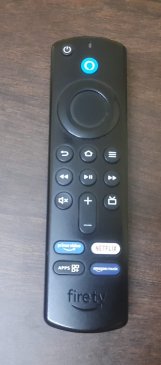
🔍 Common Reasons Why Your Fire Stick Remote Is Not Working
Before jumping into fixes, it’s important to understand the underlying cause. Here are the top reasons your Amazon Fire TV remote might be malfunctioning.
1. Battery Issues (Most Common Cause)
Fire Stick remotes are notorious for quick battery drain. If your remote isn’t responding or the LED indicator isn’t lighting up, dead or weak batteries are likely the culprit.
2. Remote Not Paired
If the remote is new or was recently reset, it might not be paired with your Fire Stick. This is especially common with replacement remotes or after a factory reset.
3. Bluetooth Signal Interference
Fire Stick remotes use Bluetooth, not infrared, meaning line of sight isn’t required—but signal interference from other electronics or thick walls can cause connection issues.
4. Software Glitches
Sometimes the Fire OS has bugs or hangs during operation, rendering the remote temporarily unresponsive.
5. Physical Damage
Spilled drinks, falls, or internal wear can result in a broken Fire Stick remote.
6. Defective Fire Stick or Power Supply
Sometimes the remote is fine—but the Fire Stick isn’t receiving enough power or is frozen, making it seem like the remote is the problem.
🛠️ Fixes for a Fire Stick Remote That’s Not Working
Now that we know what might be causing the issue, let’s walk through practical solutions to get your Fire Stick remote working again.
✅ 1. Change the Batteries First
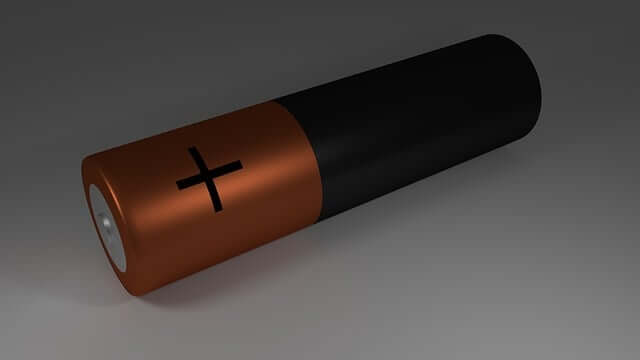
This simple step often solves the issue:
- Remove the back cover
- Replace with new, high-quality AAA batteries
- Avoid mixing old and new batteries
- Check for an LED light flash when you press a button
💡 Pro Tip: Avoid using rechargeable batteries, as they may not deliver the required voltage.
✅ 2. Re-Pair Your Fire Stick Remote
Sometimes the remote simply loses its connection.
Steps:
- Unplug your Fire Stick from power for 30 seconds.
- Plug it back in and wait for the home screen.
- Press and hold the Home button on the remote for 10 seconds.
- The remote should pair automatically.
Repeat the process if needed.
✅ 3. Use the Fire TV Mobile App as a Remote
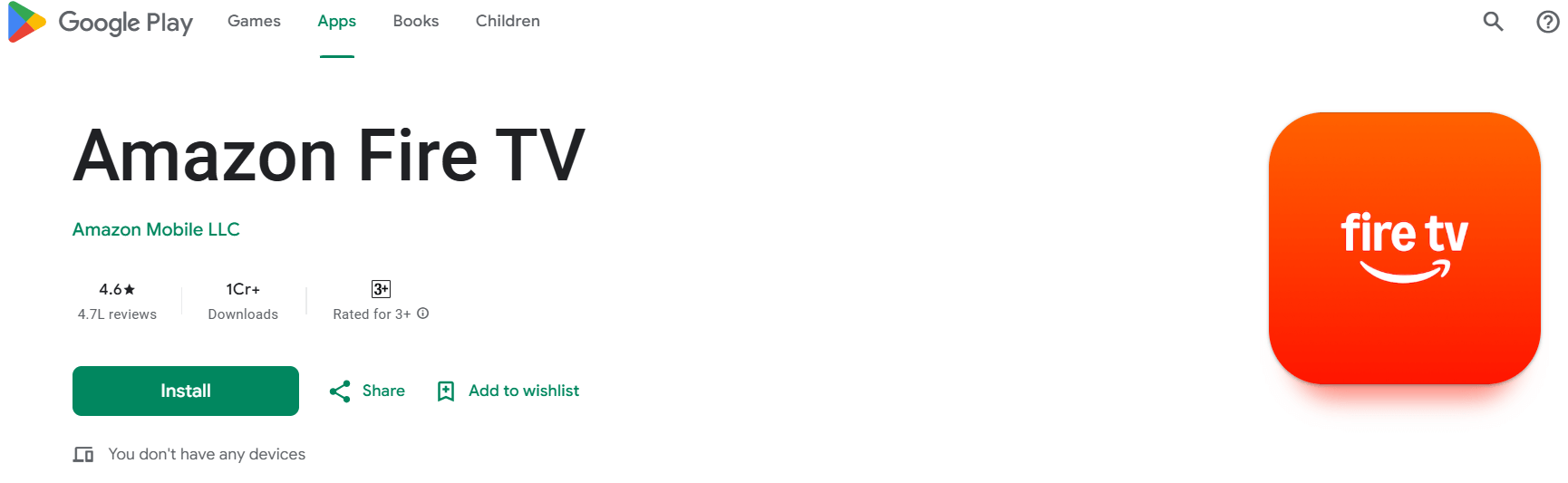
If your remote doesn’t work at all, your phone can be a lifesaver.
How to use the app:
- Download the Fire TV app from Google Play or the App Store.
- Connect to the same Wi-Fi network as your Fire Stick.
- Use your smartphone as a fully functional remote.
This allows you to access settings and troubleshoot further.
✅ 4. Reset the Remote
A deeper reset might be needed, especially if you’ve tried everything else.
To reset most Fire TV remotes:
- Unplug the Fire Stick.
- Hold Left + Menu + Back for 10 seconds.
- Wait one minute.
- Plug the Fire Stick back in.
- Hold the Home button for 10 seconds to re-pair.
✅ 5. Eliminate Bluetooth Interference
- Move devices like routers, microwaves, or Bluetooth speakers away from the Fire Stick.
- Ensure you’re within 10 feet of the device.
- Avoid thick walls between the remote and the Fire Stick.
✅ 6. Restart the Fire Stick Itself
Sometimes the Fire TV device freezes, making the remote appear unresponsive.
To force a restart:
- Unplug the Fire Stick from power for 30 seconds.
- Plug it back in and try the remote again.
✅ 7. Update the Fire OS
A software bug could be the root of the problem.
To update your Fire Stick:
- Use the Fire TV app or working remote.
- Go to Settings > My Fire TV > About > Check for Updates.
- Download and install any available updates.
🔄 When Should You Replace Your Fire Stick Remote?
If your remote continues to misbehave even after multiple troubleshooting attempts, it may be time for a replacement. Here’s when to make that call:
🚫 Obvious Physical Damage
Cracks, broken buttons, or signs of water damage mean your remote is beyond repair.
🔋 Severe Battery Drain
If you’re changing batteries weekly or daily, it’s likely a hardware issue within the remote.
🔄 Incompatibility or Old Model
Older Fire TV remotes may not work well with new Fire Stick models. Always check compatibility.
💡 Persistent Pairing Failures
If your remote won’t stay connected or is constantly dropping off, it’s time for an upgrade.
🛍️ Best Fire Stick Remote Replacements (2025 Options)
Here are the top-rated remotes compatible with most Fire TV devices:
1. Alexa Voice Remote (3rd Gen)
- Works with Fire TV Stick 4K, Fire TV Cube
- Voice control and volume buttons
- ~$30
2. Alexa Voice Remote Pro
- Includes remote finder feature and customizable buttons
- Backlit for low-light use
- ~$35
3. Third-Party Universal Remotes
- Logitech Harmony and Inteset 422-3 support Fire TV
- May require additional IR or Bluetooth adapters
🔁 Alternatives to Using a Physical Remote
Don’t want to buy a new remote just yet? Try these alternatives:
📱 Fire TV Mobile App
Free on Android and iOS, supports voice search and navigation.
🗣️ Alexa Smart Speakers
If you have an Echo device, control your Fire Stick with voice:
“Alexa, open Netflix on Fire TV.”
🎮 Game Controllers or USB Keyboards
With the right OTG adapter, some Bluetooth game controllers or USB keyboards can be used to control Fire TV.
🔚 Final Thoughts
If your Fire Stick remote is not working, don’t panic. This is a common issue, and in most cases, the solution is simpler than you might think. Often, it comes down to something as easy as dead batteries, temporary signal interference, or the need to re-pair the remote with your Fire Stick—all of which can be resolved in just a few minutes using the steps outlined above.
However, if you’ve already tried replacing the batteries, resetting the remote, and re-pairing it without success, don’t worry—you’re not out of options. Technology isn’t perfect, and sometimes devices simply wear out or fail over time. In these cases, replacing your Fire Stick remote with a new model—like the Alexa Voice Remote or Remote Pro—is a fast and reliable way to regain full control over your streaming setup.
Even better, you don’t necessarily have to wait for a new remote to arrive. The Amazon Fire TV mobile app transforms your smartphone into a fully functional remote with voice control, a keyboard for easy text input, and navigation controls. It’s a lifesaver for those times when your physical remote goes missing or stops working altogether.
And let’s not forget the convenience of hands-free control. If you have an Alexa-enabled device like an Echo Dot, you can simply use voice commands to control your Fire TV:
“Alexa, play The Boys on Fire TV.”
“Alexa, rewind 30 seconds.”
“Alexa, open Disney+.”
This kind of seamless integration turns your living room into a smart entertainment hub—even without a traditional remote.
🧠 Remember: The best streaming experiences start with a working remote—whether it’s physical, virtual, or voice-powered. Taking a few minutes to troubleshoot now can save you hours of frustration later. And if a replacement is needed, consider it a small investment for uninterrupted access to your favorite shows, movies, and apps.
So, before you give up on movie night or your latest Netflix binge, try the fixes, explore the alternatives, and know that getting back in control of your Fire TV Stick is usually just a click—or a voice command—away.
🙋 FAQs About Fire Stick Remote Problems
❓ Can I use any Fire Stick remote with my Fire Stick?
Most Amazon remotes are compatible, but always check the model number for compatibility.
❓ How do I reset my Fire Stick if I don’t have a remote?
Use the Fire TV app or plug in a USB keyboard via OTG cable.
❓ Why won’t my new remote pair with my Fire Stick?
It may need a manual pairing using the Home button method. Ensure batteries are inserted properly.


